A common question among search optimizers is whether a “404” HTTP status code conveys negative ranking signals for the site as a whole.
The answer is yes, but indirectly.
Impact of 404s
Table of Contents
For starters, a 404 error is not a direct ranking signal. Broken links or deleted pages do not impact sitewide rankings in Google search results. Former Google Webmaster Trends Analyst Susan Moskwa confirmed this in 2011. She called 404 errors a natural occurrence on the web, one that search engines are aware of.
She also stated that Google prefers 404 status codes (or 410s for pages intentionally removed) because they clearly inform that the page is unavailable.
Google’s Search Console guidelines also address 404s, stating they “won’t impact your site’s search performance.”
Google’s John Mueller recently confirmed this on Reddit (“johnmu” ): “Just to be clear: 404s/410s are not a negative quality signal. It’s how the web is supposed to work.”
Yet 404 status codes can result in a loss of organic rankings through other signals:
- Poor usability. Clicking a broken link is a poor user experience, which can prompt visitors to abandon a site. Clicks and engagement are Google ranking factors. Visitors who land on a site and quickly leave suggest to Google that they are dissatisfied.
- Loss of link equity. Internal and external links to deleted pages pass no link equity.
Detecting 404s
Hence detecting and fixing broken links and deleted pages is a key step in diagnosing organic traffic drops. I typically use three methods: Search Console, Google Analytics, and third-party tools.
Search Console
Search Console’s “Pages” report includes unindexed URLs and the reasons, such as 404 and 410 status codes. Review the list and confirm:
- You removed the pages intentionally.
- No internal links point to those pages. To verify, click the 404 page in the list, then “Inspect URL” to the right for referring sitemaps or pages.
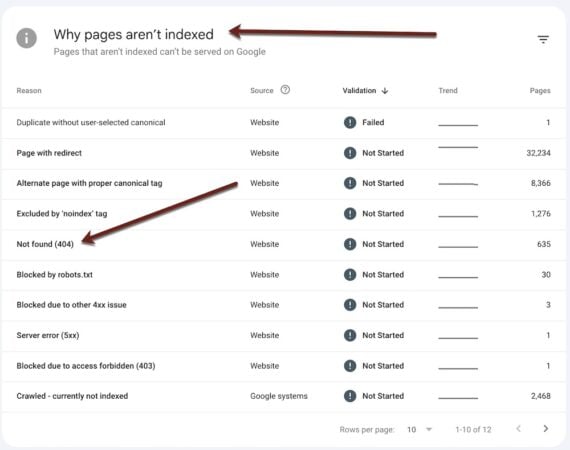
Search Console’s “Pages” report includes unindexed URLs and the reasons. Click image to enlarge.
Google Analytics
First, note the default title of your 404 pages. Load a meaningless, non-existent URL on your site, such as yoursite.com/iuyhtgf. View the page title. (Bookmark the page, view the title in “Edit bookmark” or similar.)
In my case, it’s “404 – Page Not Found.”
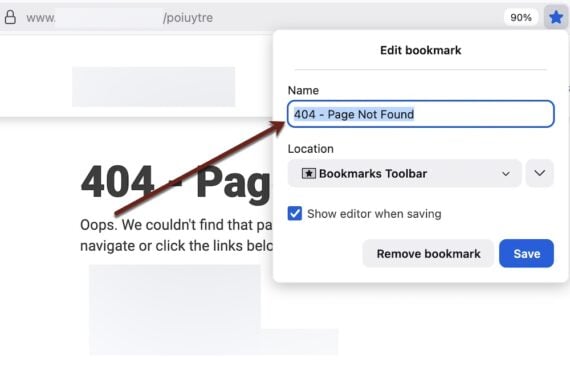
View the page title, such as “404 – Page Not Found” in this example.
Next, go to the “Pages and screens: Landing page” report in Google Analytics:
- Keep the primary dimension as “Page title and screen name.”
- Add a secondary dimension “Page URL.”
- Search for your 404 page title.
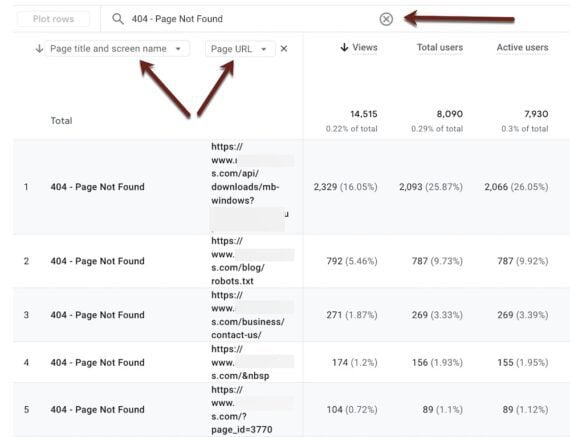
Go to the “Pages and screens: Landing page” report on Google Analytics. Click image to enlarge.
Third-party tools
Platforms such as Ahrefs and Semrush can identify external links pointing to error pages on your site. Access Semrush’s tool in the “Backlink Audit” section:
- Enter your domain.
- Go to the “Backlink Audit” in the right-hand panel.
- Click “Indexed pages.”
- Check the box for “Broken links.”
The Semrush report shows the number of domains linking to each broken page. Ahrefs’ report is similar.
Web crawlers such as Screaming Frog can identify broken internal links.
404s: Dos and Don’ts
To save link equity from deleted pages:
- Reinstate the page.
- 301-redirect the link to another internal page. Google will pass link equity via a 301 only if the destination page’s content is identical or very similar to the deleted version.
Don’t mass-redirect all 404 pages to the home or unrelated page. It’s a poor user experience because visitors were expecting different content.
Instead, optimize 404s by redirecting to similar pages, or do not redirect at all and encourage visitors on the 404 page to use internal search.