You want to build a custom WordPress block. But you don’t want to learn React, manage a build pipeline, or deal with NPM packages.
Seven and half years after blocks arrived in Core, WordPress introduces a way to build blocks without any of these things. All you need is PHP.
But was the long wait worth it?
A radically simplified block building experience
A traditional WordPress block needs to be registered twice. Once in PHP, and once in JavaScript.
But WordPress 7.0 introduces a new and streamlined approach, allowing you to register a block using only PHP.
Registering a block using only PHP
Let’s use this feature to build a Hello World Block:
function css_tricks_hello_world_block() {
  register_block_type(
    'css-tricks/hello-world',
      [
        'title' => 'Hello World',
        'render_callback' => function () {
          return sprintf(
            '<div %s>Hello World!</div>',
            get_block_wrapper_attributes()
          );
        },
        'supports' => [
          'autoRegister' => true,
        ],
      ]
  );
}
add_action('init', 'css_tricks_hello_world_block');
The block is fully functional in the block editor, and fits right in with all the other blocks:
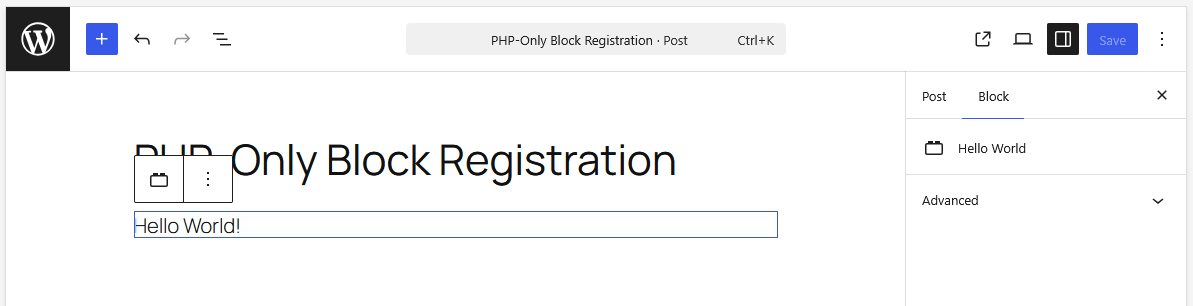
The key addition is the 'autoRegister' => true flag in the supports section. When set, WordPress automatically generates the required JavaScript for your block based on the PHP registration. This includes the client-side registration, and the editor preview.
Adding attributes to PHP-only registered blocks
Attributes let users customize the block’s appearance and behavior. In traditional block development you not only need to define the attributes, but also build out the corresponding controls in the editor interface.
With PHP-only registration, all that is needed is the attributes definition during block registration:
function css_tricks_hello_world_block()
{
  register_block_type(
    'css-tricks/hello-world',
    [
      'title' => 'Hello World',
      'render_callback' => function ($attributes) {
        return sprintf(
          '<div %s>%s</div>',
          get_block_wrapper_attributes(),
          esc_html($attributes['greeting'])
        );
      },
      'supports' => [
        'autoRegister' => true,
      ],
      'attributes' => [
        'greeting' => [
          'type' => 'string',
          'default' => 'Hello World!',
        ],
    ],
    ]
  );
}
add_action('init', 'css_tricks_hello_world_block');
This code registers a greeting attribute as a string, with a default value. WordPress generates the corresponding input control in the block’s Settings sidebar.
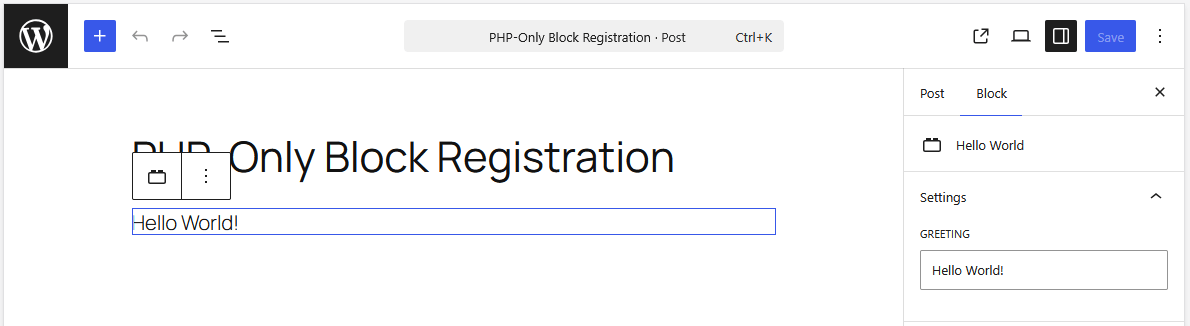
At first sight, there is a lot to like about PHP-only registered blocks. For any WordPress developer, it feels like the good old times when programming was simpler.
Limitations of PHP-only registered blocks
You might be tempted to delay learning JavaScript block development indefinitely. But the PHP-only approach has important limitations worth understanding.
No interactions with the content of the block
The editor displays the HTML as returned by the block’s render_callback PHP function. When the block is first displayed or when the user interacts with one of its controls, the editor component requests a new PHP render from a REST API endpoint.
While blocks rendered this way integrate seamlessly into the editor, they are not part of the single page JavaScript application that powers the entire editor experience.
This creates two key limitations:
First, you cannot add any controls within the block preview. This means you are limited to the auto-generated controls in the Settings sidebar.
The default interaction mode with blocks is the block preview itself. Imagine that you need a testimonial block. With a JavaScript rendered block, you would build out the testimonial design, and allow editing in place.
With a PHP-rendered block you can only use the sidebar. And even here you are limited, as currently there’s no support for image uploads or multiline text.
With JavaScript, you can allow editing in the block, as well as in the sidebar. Additionally you have access to all the controls that WordPress Core uses, and can even implement your own.
But without JavaScript, you’ll always be limited to the options WordPress provides based on the registered attributes of your PHP-only block.
Secondly you cannot attach any JavaScript to markup in the block preview. Imagine you want to develop a block that pulls five related posts, and which displays them in a slider. For that you would output the markup, and then pass a DOM node to the JavaScript library which then transforms the raw markup into the desired slider interface.
This reliance on finding and manipulating DOM elements is typical for traditional JavaScript development. But with PHP-only registered blocks in the block editor, the markup is fetched asynchronously and replaced on every re-render. This makes interacting with the DOM of the block preview unreliable or impossible.
While the front end render works fine with JavaScript libraries, the editor authoring experience will not work correctly. Even if you manage to attach any event listeners on first load, these will be disconnected the moment the preview re-renders.
These limitations are caused by the architecture of this feature, and they will not change in the future.
No access to fresh data
On the initial load of the block editor, WordPress loads the post data from the database into a client-side store managed by JavaScript. Any changes that you make in the editor update this data store on the client side. But the database isn’t updated until you save the post.
PHP-only registered blocks bypass this client-side store. When a block renders, it queries the database directly. But the database might contain stale data compared to what’s currently in the editor. Even worse, the PHP-rendered block isn’t notified of changes in the client side data, so it can’t refresh when data changes.
Let’s take a practical example: Imagine you are building a block that displays a header element with the post title. When the user changes the title in the editor, your block will still show the value from the database. You would need to save the post and reload the editor for the changed title to show up in the PHP-only block.
This makes PHP-only blocks unsuitable for any block that displays data that the user can change in the editor like title, content, excerpt, features images, or attached terms.
No access to the current post context
PHP-only registered blocks render through a REST API endpoint. So the same code renders the editor preview and the front end. But there is a critical difference: the global state.
On the front end, blocks render within The Loop, which sets key global variables like $post. Template tags like the_title() or the_content() rely on these globals to know which post is displayed.
But REST APIs are stateless, and don’t rely on global state. The endpoint that renders the block editor preview accepts a post ID parameter, but the editor component does not pass it through. This means that your render callback has no way to know which post is edited.
This limits the functions that you can use in the block editor preview. Template tags or functions like get_post_meta() need to know about the post context.
This is a significant architectural limitation as of WordPress 7.0. This could be addressed by passing the post ID to the endpoint, but there are no concrete plans to change this at the time of this writing.
Limited attribute types and editing interfaces
WordPress 7.0 supports only three attribute types: strings, numbers, and booleans. These map to four basic editor controls: text inputs, number inputs, checkboxes, and a dropdown.
This screenshot shows a block that uses all available user interface elements:
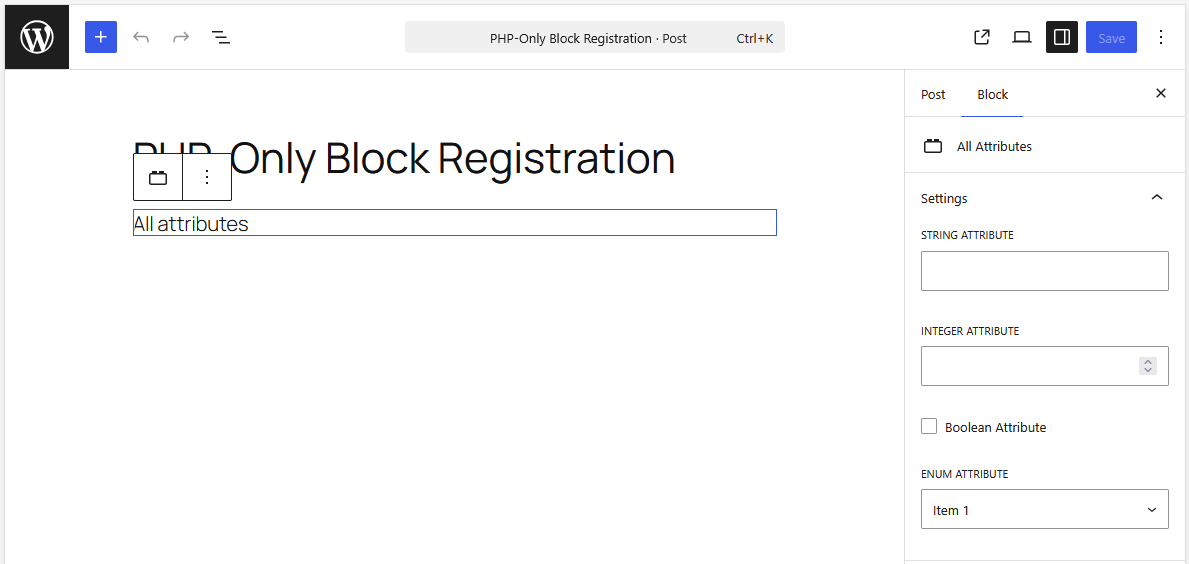
The dropdown element is the only advanced control, but it has a significant limitation: it does not support keyed arrays. This makes it impossible to have a label that differs from the stored value.
Let’s take the example of a related posts block where users can select a category. You want to display the category names in the dropdown, but store the category IDs. This isn’t possible.
Instead, you must choose between displaying names or slugs, which both are user-editable, and store that value:
'attributes' => [
  'selected_category' => [
    'label' => 'Select a category',
    'type' => 'string',
    'default' => 'uncategorized',
    'enum' => wp_list_pluck( get_categories( [ 'hide_empty' => false ] ), 'slug' ),
  ],
],
This saves the slug to the block markup:
<!-- wp:css-tricks/related-posts {"selected_category":"news"} -->Using slugs not only doesn’t look good in the interface, but this implementation will also break when renaming a category. All existing blocks referencing the old slug will not be able to pull the related posts. IDs are stabler, and would only be invalid when the category is deleted.
Beyond dropdowns, essential controls — like image uploads, rich text editors, or date pickers — are absent. This might change in future releases, but again, there are no plans for it as of yet.
The killer use case: Migrating legacy PHP code
It’s easy to get discouraged looking at these limitations. It is true that PHP-only registered blocks are a poor choice for building new blocks from scratch.
But I consider them to still be very valuable because there is one use case where these limitations do not matter: migrating legacy PHP code into block themes. This WordPress 7.0 feature is a real game changer when it comes to developers adopting block themes, which is still a barrier of sorts for many theme authors.
The block theme adoption problem
In my experience, block themes are more performant, easier to maintain, and faster to build than legacy themes. Yet many developers are still relying on classic themes. And that is not by choice, but because of existing PHP-based features.
Until now, migrating these features came up against nearly insurmountable barriers. First, the need to learn JavaScript block development, and set up an entirely new development workflow with dependency management and build pipelines. Second, the time needed to rewrite all this code in JavaScript.
PHP-only registered blocks remove both these obstacles.
A real-world migration example
In 2022, I wanted to migrate a classic theme to a block theme.
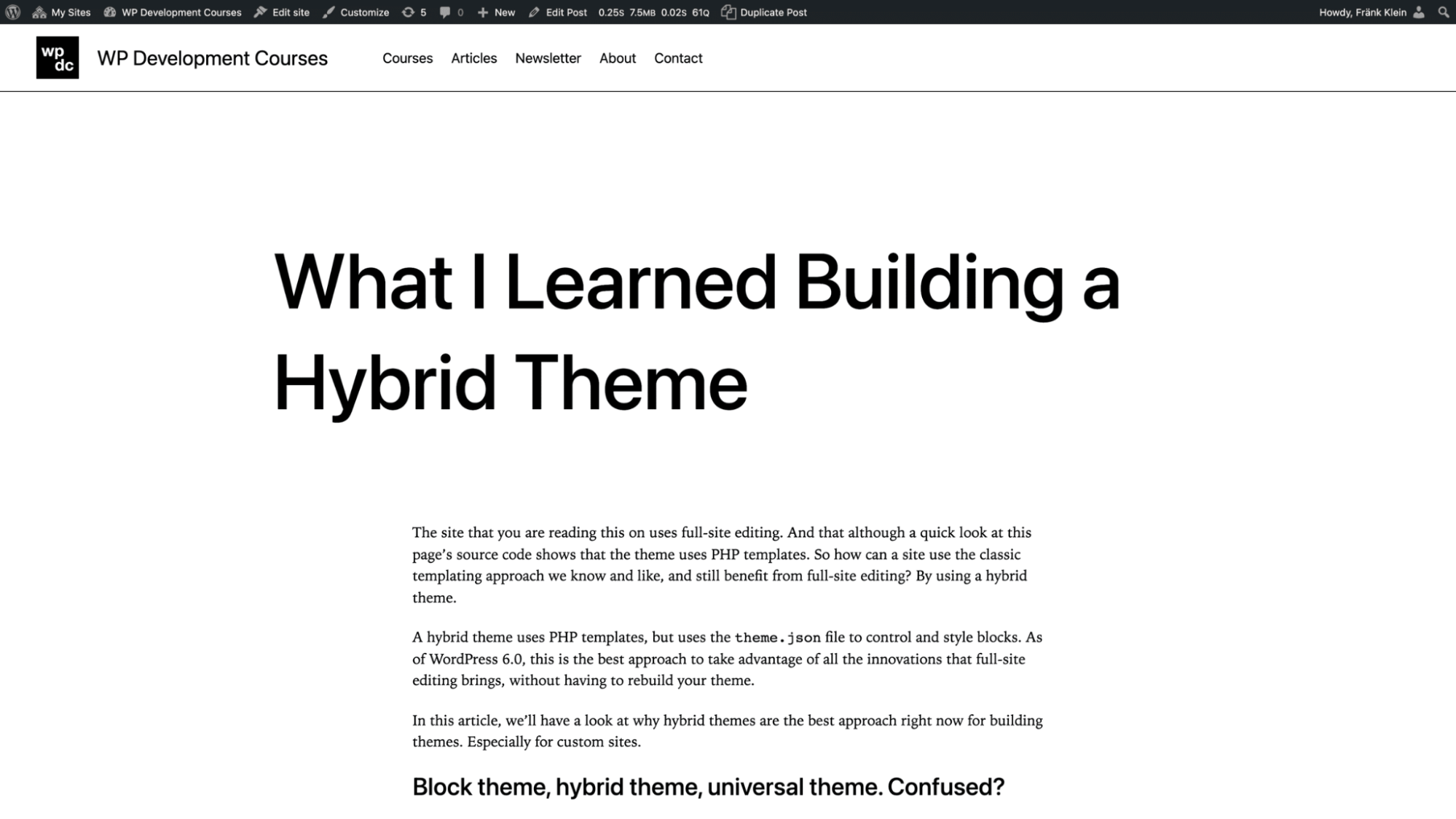
The content area and the footer were straightforward to rebuild with blocks. But the header was more complex, especially with the more limited block building features of the time.
So, rather than spending time rebuilding the header, I took the existing PHP-header, and wrapped it in a server-side rendered block.
That said, we need to be realistic. This header block was far from perfect. The block preview was not responsive, dropdowns didn’t work in the editor, and you could not edit anything.
Did it matter? Not at all. The block rendered perfectly on the front end, and the editor preview was good enough. And because of this approach, I could migrate the theme in hours instead of days.
Before PHP-only registration, building such blocks still required a solid JavaScript proficiency and build tooling. But now any PHP developer can use this migration path using the skills they already have.
What you can migrate
PHP-only registered blocks are ideal for converting:
- Legacy widgets: The Settings sidebar of the block editor is perfect to reproduce a legacy widget’s settings.
- Shortcodes: While you can use shortcodes in block templates, working with them is awkward at best. Migrating shortcodes to blocks is now straightforward with WordPress 7.0.
- Template parts and custom template tags: Headers, footers, author biographies, related posts, etc.
- Custom functionality: Anything that works on the front end without needing any interactivity in the editor.
The blocks you create do not need to be perfect in the editor. What counts is that they render correctly on the front end. By using existing PHP code, adaptations to block themes will be minimal.
Practical tips for building PHP-only registered blocks
Here are a few things I’ve learned along the way as I’ve been playing with blocks registered with PHP.
Distinguishing between front end and back end rendering
There might be cases in which you want to have a different block rendering depending on whether the block is displayed in the admin, or on the front end.
Using the is_admin() function for this use case does not work, as it does not evaluate to true when the REST API endpoint generates the markup for the block editor preview.
But there is another function that we can use: wp_is_rest_endpoint(). If it returns true, it means that WordPress is generating a REST API endpoint request. But this could be any endpoint rendering posts, so we need to ensure that we’re dealing with the Block Renderer endpoint.
function css_tricks_php_only_detecting_editor_render()
{
  register_block_type(
    'css-tricks/php-only-detecting-editor-render',
    [
      'title' => 'PHP-Only Detecting Editor Render',
      'render_callback' => function () {
        if ( wp_is_rest_endpoint()
          && str_contains($GLOBALS['wp']->query_vars['rest_route'] ?? '', 'v2/block-renderer/' )
         ) {
           $frontend = false;
         } else {
           $frontend = true;
         }

         $bgcolor = $frontend ? 'green' : 'blue';

         return sprintf(
           '<div %s>%s</div>',
           get_block_wrapper_attributes(['style' => "color: #fff; background-color: $bgcolor;"] ),
           $frontend ? 'Rendered on the frontend' : 'Rendered in the editor'
          );
        },
        'supports' => [
          'autoRegister' => true,
        ]
      ]
  );
}
add_action('init', 'css_tricks_php_only_detecting_editor_render');
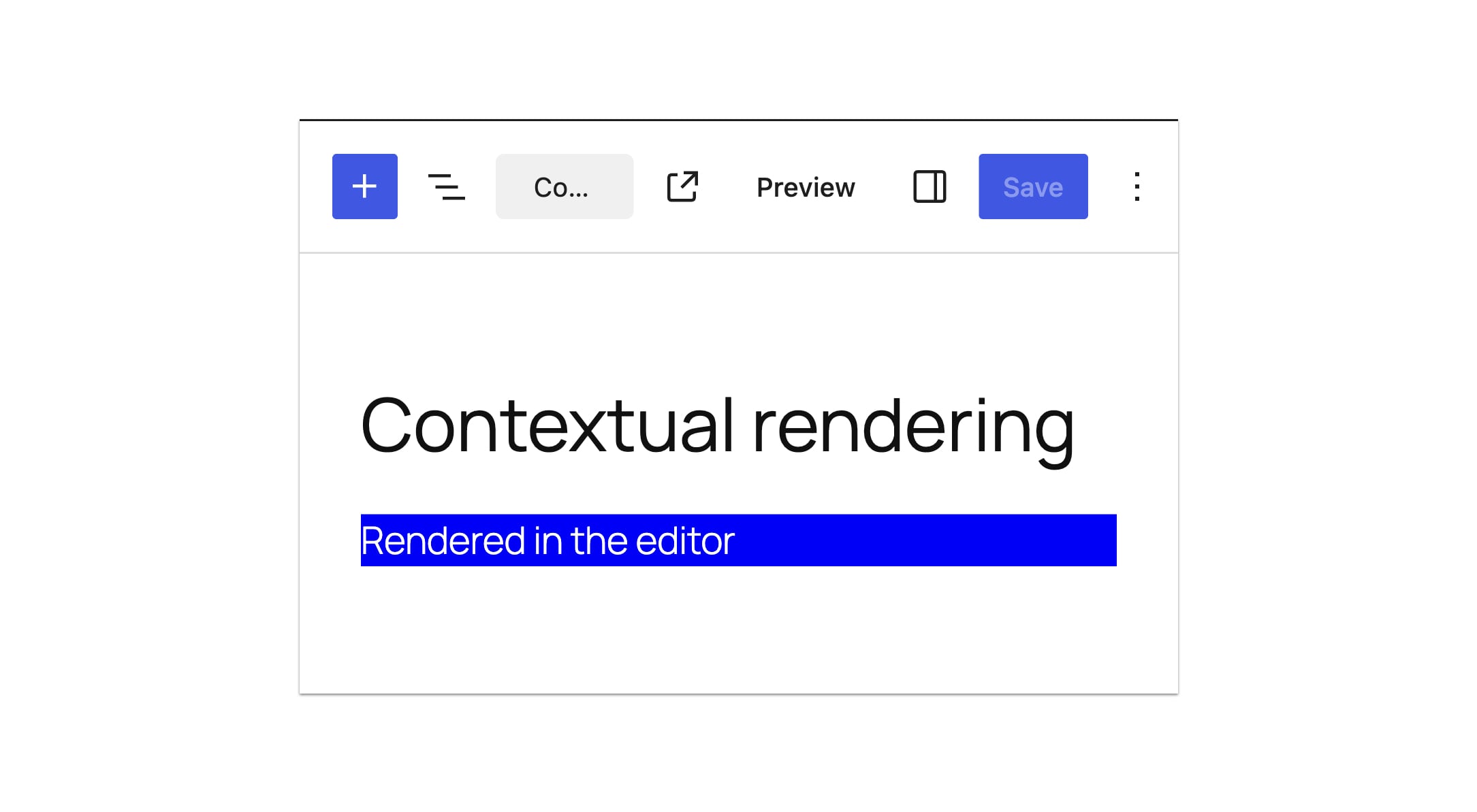
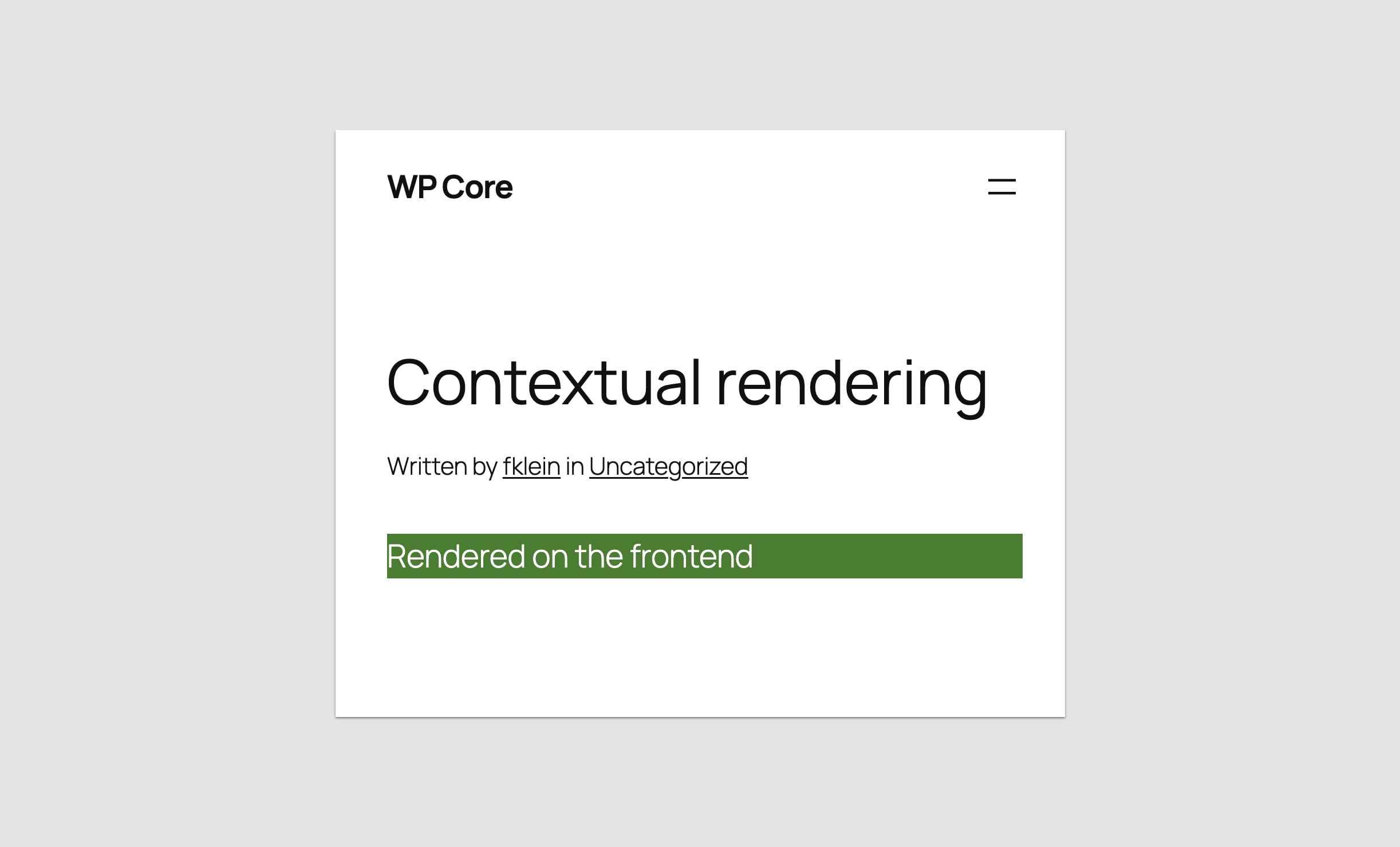
This shows different text and styling depending on whether the block is rendered in the editor or on the front end:
Accessing the current post ID
We’ve seen that WordPress out of the box does not give you access to the ID of the edited post in PHP-only registered blocks. There is a workaround though.
WordPress registers blocks in the init hook. This hook also runs on every admin page. When you edit a post, the ID of the edited post is passed as a GET argument in the URL, for example: https://css-tricks.com/wp-admin/post.php?post=5&action=edit
This means that at the moment of the block registration, we can retrieve this ID. To pass it to the block, we use an attribute. But we do not want WordPress to add an interface element, so we set the source of the attribute to local.
function css_tricks_php_only_post_title_block()
{
  register_block_type(
    'css-tricks/php-only-post-title',
    [
      'title' => 'PHP-Only Post Title',
      'render_callback' => function ($attributes) {
        $post_id = is_int(get_the_ID()) ? get_the_ID() : $attributes['postId'];

        if ($post_id === 0) {
          return sprintf(
            '<div %s>Please save the post and reload the page.</div>',
            get_block_wrapper_attributes()
          );
        }

        return sprintf(
          '<div %s>%s</div>',
          get_block_wrapper_attributes(),
          get_the_title($post_id)
        );
      },
      'supports' => [
        'autoRegister' => true,
      ],
      'attributes' => [
        'postId' => [
          'type' => 'integer',
          'default'=> isset($_GET['post']) ? absint($_GET['post']) : 0,
          'role' => 'local'
        ],
      ]
    ]
  );
}
add_action('init', 'css_tricks_php_only_post_title_block')
This only works when editing an existing post. When a new post is created, there is no post ID passed through the URL. WordPress will create one when the post is first saved, and update the URL.
But this is done through JavaScript without triggering a new page load from the server. Meaning that the PHP won’t have an opportunity to access the post ID until a full page reload is done.
So, yeah, not the greatest approach. But it’s good enough to unblock you until WordPress Core adds a proper implementation to pass post data to PHP-only registered blocks.
Using placeholders
There are situations in which it is difficult to achieve a decent preview in the editor. In certain situations, it’s even impossible.
Think, for example, of a newsletter form provided as a snippet of HTML and JavaScript. Due to the limitations we’ve seen, the editor preview will always look broken.
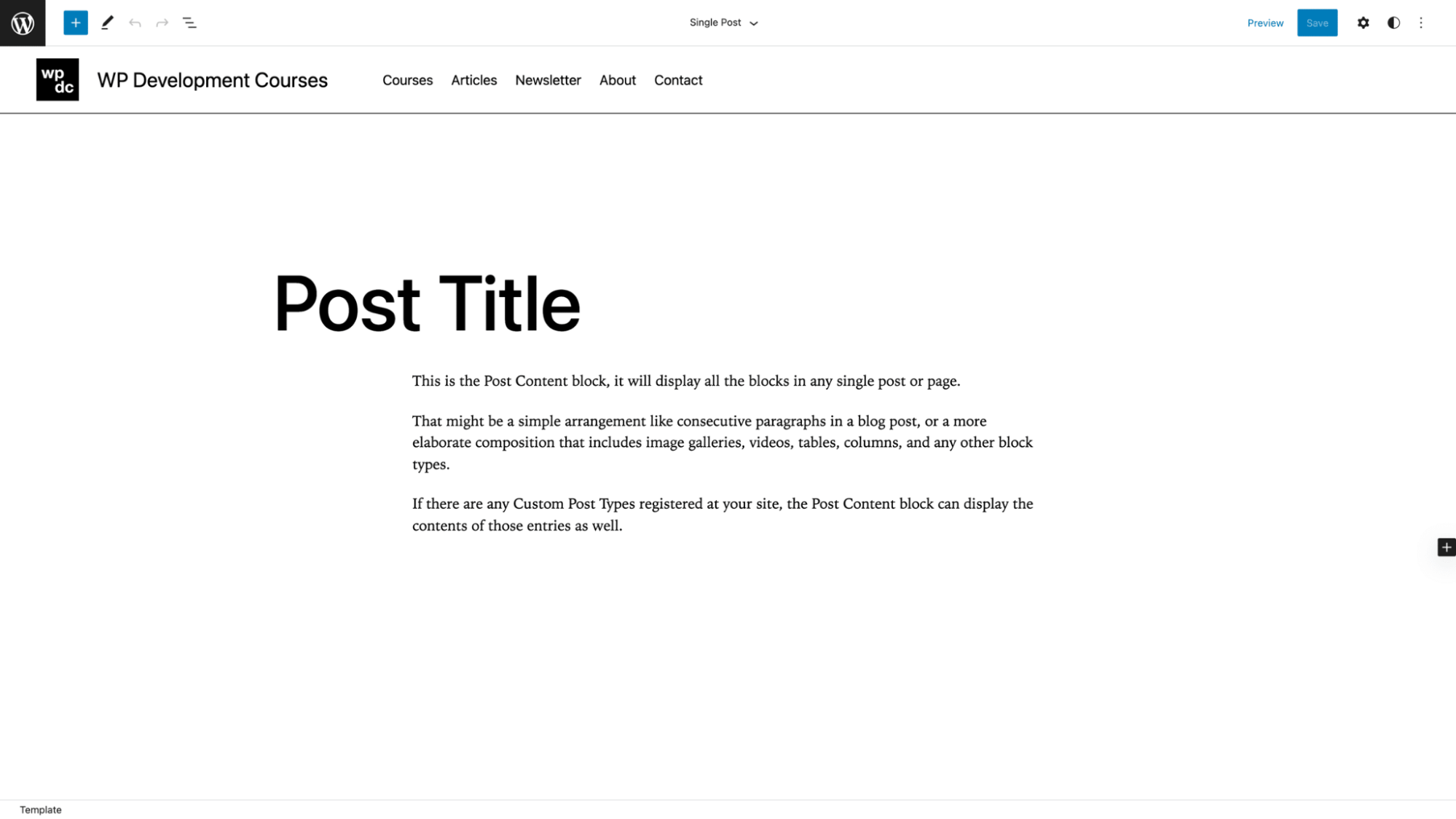
In a situation like this, you can implement a placeholder in the editor. This is a strategy that WordPress Core uses as well, as we can see for the Post Content block:
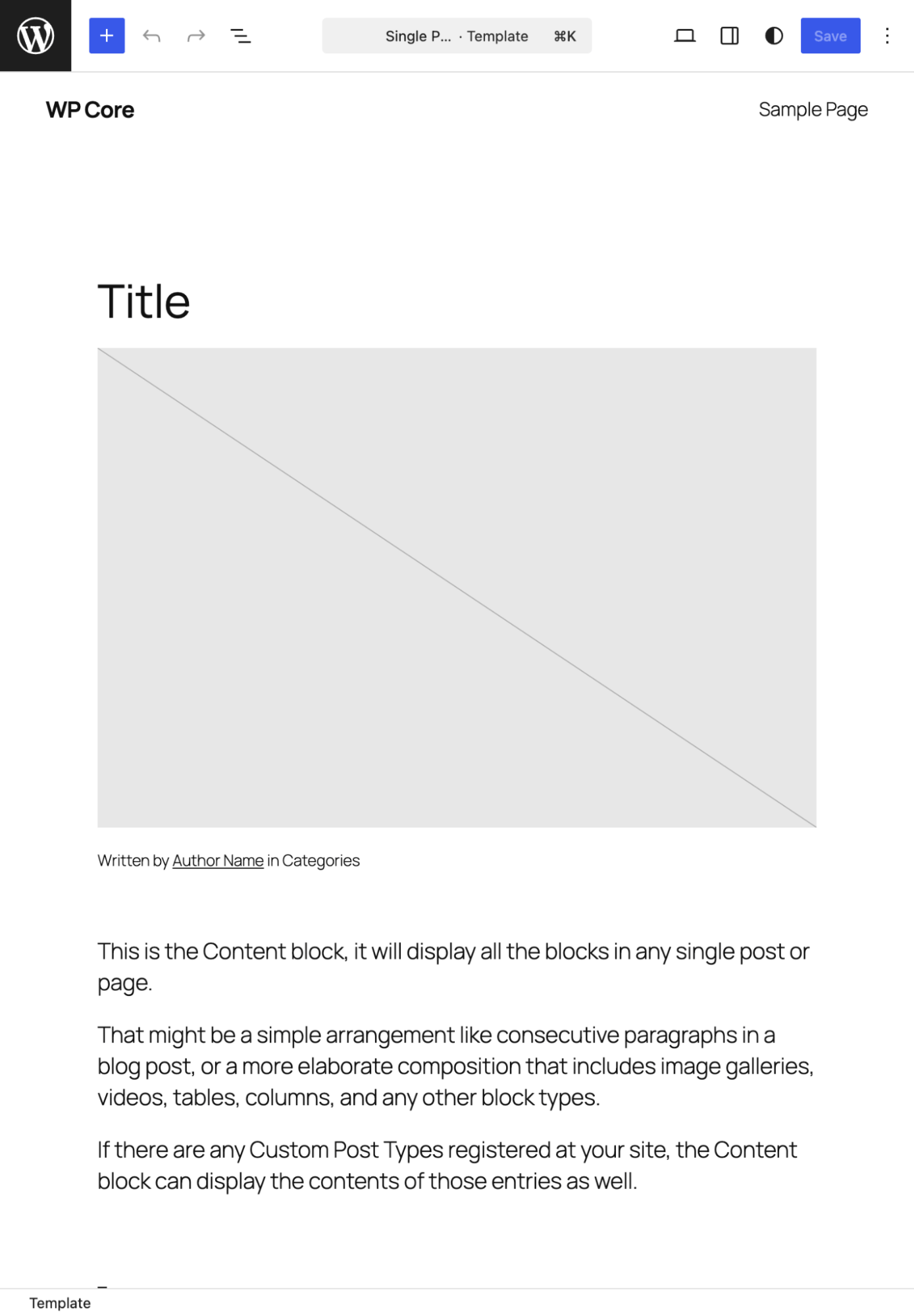
Users do not expect an exact preview in every case. Choose the best compromise between the time needed to achieve a proper block editor preview and the expected UX gain.
Adding CSS stylesheets
You can use WordPress optimized stylesheet enqueuing, which only enqueues stylesheets on the front end for the blocks present on that specific page.
The register_block_type function offers two arguments:
style: Enqueue both in the editor, and on the front end.editor_style: Enqueue only in the blocker editor (after the style stylesheets). This allows you to implement overrides for front-end styles in the editor.
To add a CSS stylesheet, register it using wp_register_style() Then use the handle during block registration:
function css_tricks_hello_world_block()
{
  wp_register_style(
    'css-tricks-hello-world',
    plugins_url( 'style.css', __FILE__ ),
    [],
    filemtime( plugin_dir_path( __FILE__ ) . 'style.css' )
  );

  register_block_type(
    'css-tricks/hello-world',
  [
    'title' => 'Hello World',
    'render_callback' => function ($attributes) {
      return sprintf(
        '<div %s>%s</div>',
        get_block_wrapper_attributes()
      );
    },
    'supports' => [
      'autoRegister' => true,
    ],
    'style' => 'css-tricks-hello-world',
    ]
  );
}
add_action('init', 'css_tricks_hello_world_block');
Styling blocks
WordPress auto-generates a .wp-block-{namespace}-{block-name} class and adds it to the wrapper container of your block as part of get_block_wrapper_attributes().
If you need to add additional classes or styles, you can pass these to get_block_wrapper_attributes() in the render callback function.
$wrapper_attributes = get_block_wrapper_attributes(
  [
    'class' => 'custom-class',
    'style' => 'color: #333',
  ]
);
It’s the best practice to use this class as the common root class for writing targeted styles. I prefer to use the Block, Element, Modifier (BEM) approach for writing block styles. It prevents my styles from clashing with styles provided by WordPress Core or other code.
A common scenario is that you will have existing CSS, and restructuring this code and the markup using BEM would be too much work. In that case I recommend using a unique prefix for these legacy classes.
If you are dealing with a website that uses a front-end framework like Bootstrap, avoid enqueuing any framework stylesheets. You need to only migrate the CSS instructions that the block needs, applying unique prefixes as described above.
Use the iframed editor, if possible
There are two ways for WordPress to integrate the post editor into the admin:
- Embedded into the existing admin page
- Integrated through an iframe
WordPress started with the first approach but quickly realized that it made styling the block editor very difficult. Without an iframe, any admin styles can interfere with that styles of the block editor, including your custom blocks.
In practice, this means that your blocks can look different in the editor than they do on the front end. For simplicity you want to use the same styles across both the front end and the editor preview with minimal adjustment. And the iframed post editor allows you to do that.
As of WordPress 7.0, the post editor is iframed if all blocks in the post are Version 3 or higher. WordPress 7.1 will enforce the iframe approach independently of the blocks.
So, to simplify building blocks and prepare for the next release, I think it’s best to ensure that all blocks on your sites use the Block API Version 3.
Adding JavaScript
JavaScript support for PHP-only registered blocks is limited to the front end. To add a script, you can register it, and then pass the handle to the view_script during registration:
function css_tricks_hello_world_block()
{
  wp_register_script(
    'css-tricks-hello-world',
    plugins_url( 'script.js', __FILE__ ),
    [],
    filemtime( plugin_dir_path( __FILE__ ) . 'script.js' )
  );

  register_block_type(
    'css-tricks/hello-world',
    [
      'title' => 'Hello World',
      'render_callback' => function () {
        return sprintf(
          '<div %s>Hello World!</div>',
          get_block_wrapper_attributes()
        );
      },
      'supports' => [
        'autoRegister' => true,
      ],
      'view_script' => 'css-tricks-hello-world',
    ]
  );
}
add_action('init', 'css_tricks_hello_world_block');
WordPress will only enqueue this script when the block is present on the current page.
Adding customization options
PHP-only registered blocks can use the Block Supports API, which allows opt-in to core features. Depending on the feature, the block editor will expose additional interface elements to the user. It will also add attributes to the block to store the user’s choices.
There are features that will work independently of the theme. Others need to be enabled by the theme through its theme.json file.
Here is an example enabling color customization for the text and background color:
function css_tricks_hello_world_block()
{
  register_block_type(
    'css-tricks/hello-world',
    [
      'title' => 'Hello World',
      'render_callback' => function ($attributes) {
        return sprintf(
          '<div %s>%s</div>',
          get_block_wrapper_attributes(),
          esc_html($attributes['greeting'])
        );
      },
      'supports' => [
        'autoRegister' => true,
        'color' => [
          'background' => true,
          'text' => true,
        ],
      ],
        'attributes' => [
        'greeting' => [
          'type' => 'string',
          'default' => 'Hello World!',
        ],
      ],
    ]
  );
}
add_action('init', 'css_tricks_hello_world_block');
WordPress will take care of the outputting the corresponding CSS classes and inline styles using get_block_wrapper_attributes().
Useful block supports options
Allowing users to customize the appearance is a good demonstration, but not something that you are likely to often use. So, let’s have a look at three useful options for PHP-only registered blocks.
Hiding a block from the inserter
All register blocks appear in the inserter by default. But this does not make sense for every block. Imagine, for example, that you use a block to migrate a legacy PHP feature only used in a single template.
In this scenario, you could set inserter to false to hide the block from the inserter. Hidden blocks stay fully functional.
'supports' => [
  'autoRegister' => true,
  'inserter' => false,  // Hide from inserter
],
Only allowing a single block instance per post
Setting multiple to false allows the block to only be inserted once into each post. An example is the core More block.
'supports' => [
  'autoRegister' => true,
  'multiple' => false,  // ← How to limit to single instance
],
Once a non-multiple block is inserted, the block’s icon is disabled in the inserter to prevent inserting a second instance.
Enabling alignment options
Setting align to true enables all available alignment options:
'supports' => [
  'autoRegister' => true,
  'align' => true,  // All alignments
],
The text alignments like left, center, and right are always available. Wide and full-width alignment are only enabled if the theme supports it.
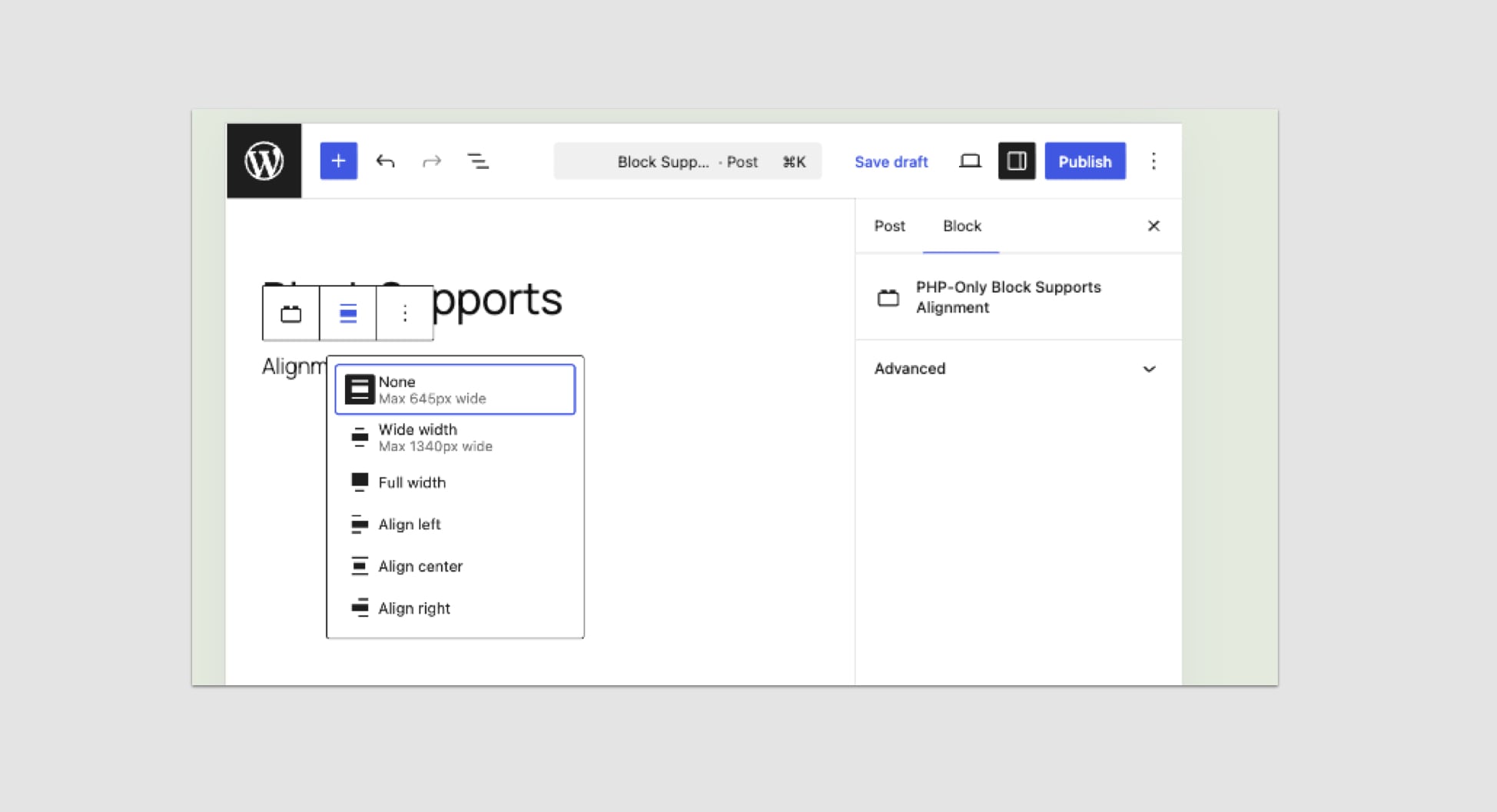
WordPress handles outputting the necessary classes for the block’s design to reflect the desired alignment.
If you want to selectively enable alignments, you can specify them. The available options are left, center, right, wide, and full.
'supports' => [
  'autoRegister' => true,
  'align' => ['left', 'center', 'right'],  // Selective alignments
],
With these tips you should be able to make the most out of PHP-only registered blocks, even with the limitations in WordPress 7.0.
Wrapping up
Remember the opening question: Was it worth waiting seven-and-a-half years for this?
For building new, feature-rich blocks, the answer is no. You need JavaScript to deliver the kinds of interactive and native-feeling editing experiences that WordPress users expect. PHP-only block registration won’t replace JavaScript-powered blocks, and nor should it.
Because it’s not what this feature is for.
PHP-only registered blocks are the solution for thousands of WordPress sites stuck with classic themes because of the high learning curve and high cost of rebuilding with JavaScript.
You can now take shortcodes, widgets, and template parts and port them to the block editor with the PHP skills you already have. No JavaScript. No build pipeline. No code duplication.
And these blocks that you build do not need to be perfect. As long as you can insert them into block content, and they render correctly on the front end, that is all that is needed.
That is the killer use case for this feature. And for that, the wait was worth it.
But beyond this feature, PHP-only registered blocks signal an important shift: WordPress Core is finally prioritizing developer experience. Even as someone who builds JavaScript-powered blocks regularly, I’ll admit that the process involves too much boilerplate code, and too much coordination between block.json, the PHP code, and the JavaScript. Which is not to mention that time spent setting up and maintaining the build pipeline.
Anything that we can do to make this process easier, or avoid it entirely, is more than welcome.
So if you have projects with legacy PHP code preventing a migration to a block theme, then WordPress 7.0 has removed your biggest obstacle.
Migrate these legacy features to blocks and unlock everything modern WordPress has to offer.