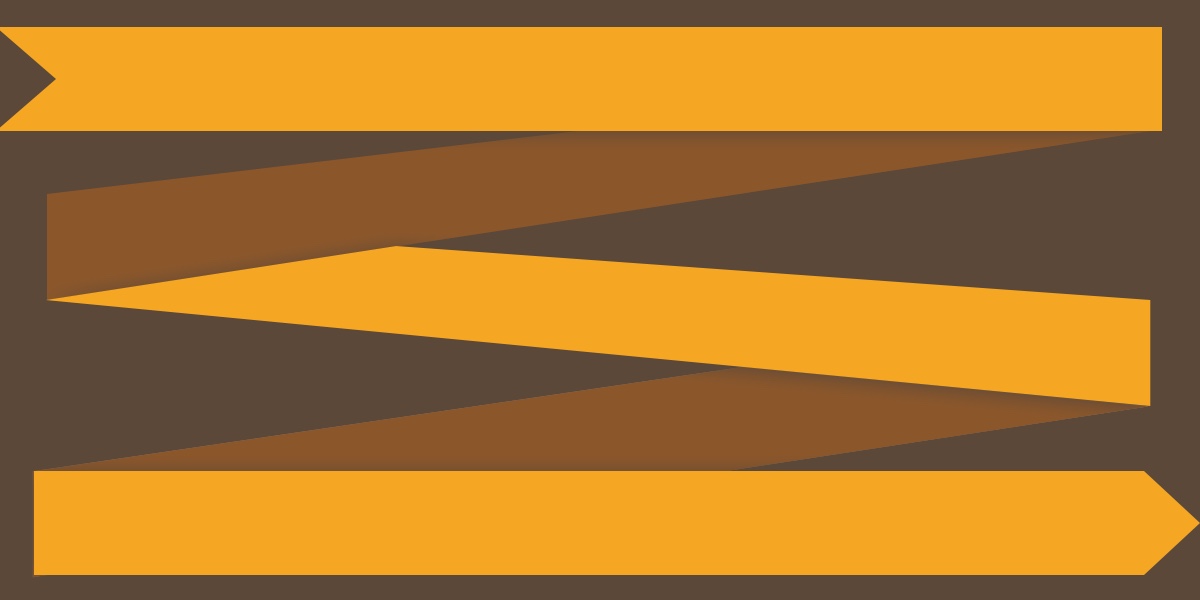
Most grid layouts sit in neat rows, perfectly aligned, like soldiers in formation. But sometimes you want something with more rhythm — a layout where items cascade diagonally, like water flowing down a waterfall.
This is the zigzag layout. And building it requires a small trick that reveals something fascinating about how CSS transforms actually work.
The Strategy
Before writing a single line of CSS, let’s think about approach.
The first idea that comes to mind: set up a flex container with flex-direction: column and flex-wrap: wrap, so items flow down and then wrap into a second column. Usually we think of the flex-wrap property in terms of rows, but the nice thing about flexbox is that it works in either orientation.
Two problems make this approach awkward:
- You need a fixed height. You have to tell the container “you are
500pxtall” for wrapping to kick in. That’s brittle. - The tab order breaks. Items flow down the first column (i.e., 1, 2, 3), then jump to the second column (i.e., 4, 5, 6). That’s not a waterfall. That’s two buckets.
To be fair, the CSS Grid approach we’re about to build has its own hardcoded value. We’ll get to that. But it sidesteps the Tab order problem entirely, and that’s a meaningful win.
The Grid Plan
Here’s what I want to do instead:
- Create a two-column grid with items sitting side by side, nothing fancy.
- Select every item in the second column, the even ones.
- Shift them down by half of their own height to establish the staggered layout.
That shift is where the magic happens. Let’s build it.
The Grid
We start with a wrapper and five items. Nothing in the file yet, just a blank slate.
<div class="wrapper">
  <div class="item"></div>
  <div class="item"></div>
  <div class="item"></div>
  <div class="item"></div>
  <div class="item"></div>
</div>
*,
*::before,
*::after {
box-sizing: border-box;
}
.wrapper {
display: grid;
grid-template-columns: 1fr 1fr;
gap: 16px;
max-width: 800px;
margin: 0 auto;
}
.item {
height: 100px;
border: 2px solid;
}We’re applying box-sizing: border-box globally because without it, the items aren’t actually 100px tall — they’re slightly taller once the border gets added. This will matter in a moment.
The Shift
Now the fun part. Let’s grab every even item and translate it down:
.item:nth-child(even of .item) {
  transform: translateY(50%);
}
A quick note on the selector. You might reach for .item:nth-of-type(even) here, and in this demo it would produce the same result since all the children are the same element type. But nth-of-type selects by tag name, not by class. So if you ever mix different element types inside the wrapper, it’ll match in ways you don’t expect. :nth-child(even of .item) is more precise because it explicitly filters by class, and it’s well-supported in modern browsers.
The zigzag emerges immediately. But let’s pause here, because something subtle is happening and it’s worth understanding.
Transform Percentages Are Different
Percentages in transforms work completely differently than they do anywhere else in CSS.
In flow layout, positioned layout, or really any layout mode, a percentage refers to the parent’s available space. If you write width: 50% on an element inside a wrapper, you’re saying: The container is this wide. Make me half of that.
Transforms don’t work this way. In a transform, percentages refer to the element itself. So translateY(50%) doesn’t mean “move down by half of the available space.” It means “move down by half of your own height.” If the element is 200px tall, it moves down by 100px.
This is actually the same coordinate-system behavior you see with the individual translate(), scale(), and rotate() CSS properties. All of them are applied in the element’s own coordinate space, post-layout. The browser finishes laying everything out first, including positions, sizes — basically the whole box model — and then applies the transform relative to the element itself. That’s why scale(2) grows outward from the element’s center, not from the top-left of the page.
This is exactly why the trick works. Each even item shifts down relative to its own size, not the container’s. The zigzag stays proportional no matter how tall the items are.
The result looks close. But it’s not quite right.
The Gap Problem
We can expose the imperfection by cranking the gap up to something absurd — say, 100px. When we do, the even items clearly aren’t sitting where they should. They need to travel a little further to account for the vertical space between rows.
Here’s the fix. First, let’s store the gap in a CSS custom property so we can reference it in multiple places:
.wrapper {
  --gap: 16px;

  display: grid;
  grid-template-columns: 1fr 1fr;
  gap: var(--gap);
  max-width: 800px;
  margin: 0 auto;
}

.item:nth-child(even of .item) {
  transform: translateY(calc(50% + var(--gap) / 2));
}
We translate by 50% of the element’s height plus half of the gap. We divide the gap by 2 because we only need to cover half the distance between rows — the full value would push it too far.
Set the gap to 16px, it looks great. Set it to 100px, it still looks great. The math holds regardless of the value.
The Overflow Surprise
We’ve solved the core puzzle. But there’s a hidden problem waiting to surface.
Let’s add a border to the wrapper to see its boundaries:
.wrapper {
  border: 2px solid red;
}
With five items, everything looks fine. The wrapper contains all of its children. No overflow. No issues.
Now add a sixth item:
<div class="wrapper">
  <div class="item"></div>
  <div class="item"></div>
  <div class="item"></div>
  <div class="item"></div>
  <div class="item"></div>
  <div class="item"></div>
</div>
The sixth item is even. It gets translated down. And it spills right out of the container.
Why? Because transforms don’t affect layout. As far as the browser’s layout engine is concerned, that sixth item is still sitting in its original, untranslated position. The wrapper sizes itself based on that original position. The transform shifts pixels visually, but the parent has no idea anything moved.
We surprised the browser.
The Fix: Reserve the Space
The simplest solution is to add padding-bottom (or padding-block-end) to the wrapper, enough to accommodate the overshoot. The padding needs to match the translation: half the item height plus half the gap.
Since padding percentages reference the parent’s width (not the child’s height), we can’t use the same 50% trick here. Instead, we store the item height as a variable:
.wrapper {
  --gap: 16px;
  --item-height: 100px;

  display: grid;
  grid-template-columns: 1fr 1fr;
  gap: var(--gap);
  margin: 0 auto;
  max-width: 800px;
  padding-bottom: calc(var(--item-height) / 2 + var(--gap) / 2);
}

.item {
  border: 2px solid;
  height: var(--item-height);
}
Now, I’ll be up front: --item-height: 100px is a hard-coded value. That’s the same kind of brittleness I flagged in the flexbox approach, where you need a fixed container height for wrapping to work. Both approaches ask you to know a dimension ahead of time. The difference here is that you’re locking down the item height rather than the container height, and the rest of the layout — column structure, gap math, source order — stays flexible. It’s a trade-off, not a deal-breaker, but it’s worth being honest about.
The wrapper now reserves exactly enough space at the bottom. No overflow. No surprises.
A Note on Accessibility
This approach keeps items in their natural source order, and that matters more than it might seem at first glance.
Screen readers are unaffected. Transforms are purely visual. The DOM order stays 1-6, and that’s exactly how assistive technology will announce them. No reordering surprises, unlike the flexbox column-wrap approach where the visual order and DOM order can diverge.
Focus order stays intact, too. When someone tabs through the items, focus follows the source order, not where the items appear visually. In our zigzag, the visual flow and source order both cascade left-right, top-down, so they naturally agree. If your layout ever gets complex enough that visual and source order start to diverge, that’s when you’d need to think more carefully about focus management.
Respect motion preferences. The zigzag itself is static — we’re not animating the transform. But if you ever decide to animate items into their staggered positions (say, on page load), wrap that animation in a prefers-reduced-motion check:
/* animates when user has no motion preference */
@media (prefers-reduced-motion: no-preference) {
  .item {
    animation: slide-in 0.3s ease-out both;
  }
}
In this case, we’ve set it up so that users who have no preference on motion are the only ones who get the animation. Typically, though, you might do the inverse of that. The layout still works either way.
The Final Demo
Once again:
Conclusion
The zigzag layout is really just three ideas stacked on top of each other:
- A two-column grid gives us the foundation.
translateY(50%)creates the stagger and works because transform percentages reference the element itself, not the parent.padding-bottomreserves space for the translated items because transforms move pixels without telling the layout engine.
Change the gap. Change the item height. Add more items. The zigzag holds.